Category:Getting Started
Reading time:2 minutes
Create Your CPLK Account
Creating aCommercialProperty.lkaccount is free and only takes a few minutes.
Once registered, you'll be able to publish commercial properties, search listings, save favourites, contact advertisers, and access features based on your account type.
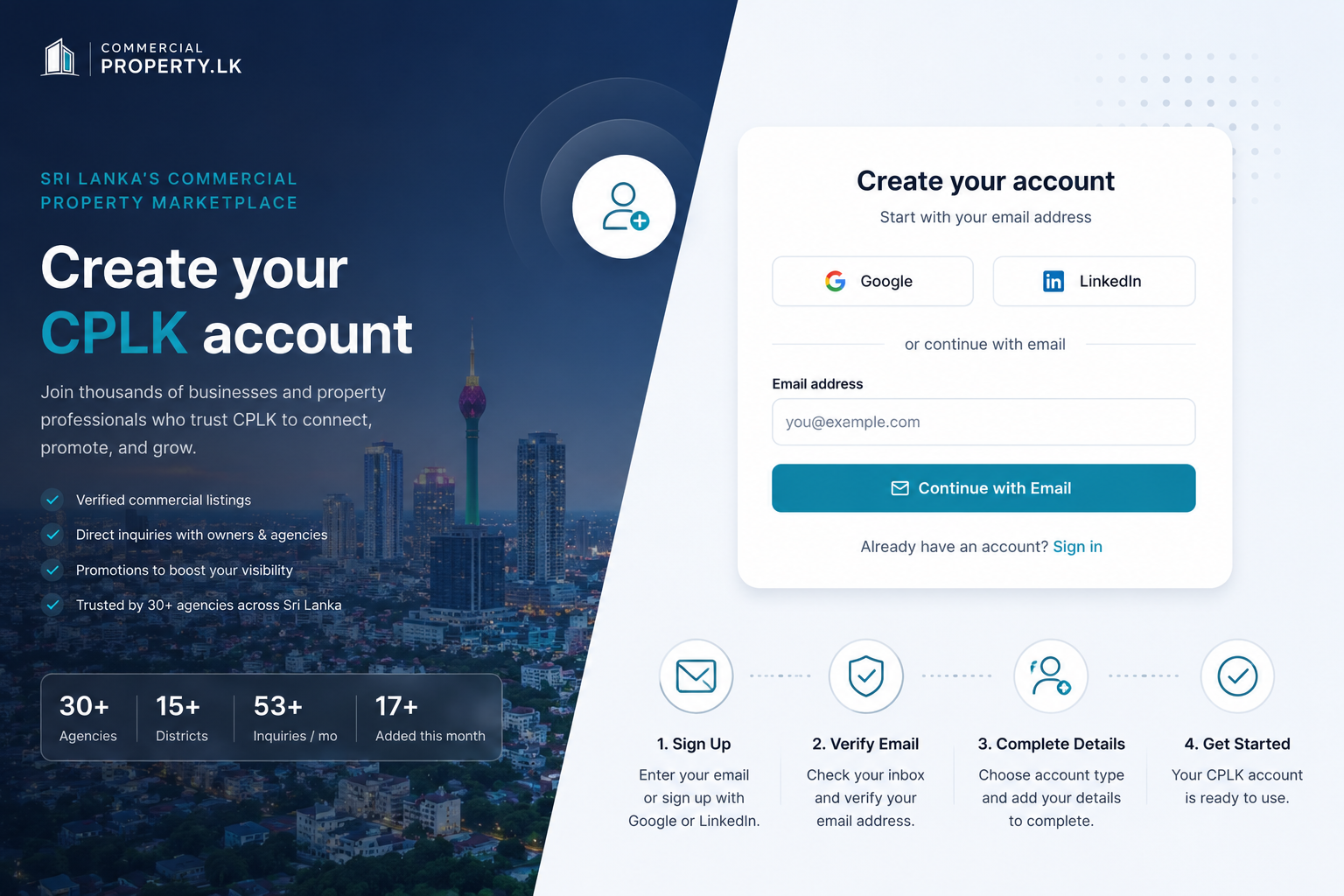
How to Create an Account
ClickSign Upfrom the top-right corner of the website.
Enter a validemail addressand clickContinue with Email.
Alternatively, you can sign up usingGoogleorLinkedInby selecting the appropriate social sign-in option.
Check your inbox and click theverification linksent to your email address.
After verifying your email, select theaccount typethat best matches how you plan to useCommercialProperty.lk.
Enter your personal details, including:
Full Name
Mobile Number
Create a strong password
Read and accept theTerms of ServiceandPrivacy Policy.
If you're registering as anAgency, you'll also need to provide:
Agency Name
Agency Address
City
Contact Number
ClickCreate Accountto complete your registration.
Your CPLK account is now ready to use.
What's Next?
After creating your account, we recommend that you:
Complete your profile.
Verify your identity (if required).
Browse commercial properties or publish your first listing.
Explore promotion options to increase your property's visibility.
Related Articles
Continue with these helpful guides:
Verify Your Email Address– Learn how to activate your account.
Account Types Explained– Understand the features available for each account type.
Complete Your Profile– Add your profile information and contact details.
Create Your First Property Listing– Publish your first commercial property onCommercialProperty.lk.
Was this article helpful?
If you still have questions, our support team is here to help.
Submit a Support TicketNot signed in? Sign in first
